From your camera to every guest's phone.
Four steps. Two are yours and take minutes. The AI does the hard part, and your guests do the rest themselves.
Golden Lens Studio
Sharma Wedding
Reception · 14 Dec · Jaipur
Table 7 · Point your camera
Opens in the browser. No app.
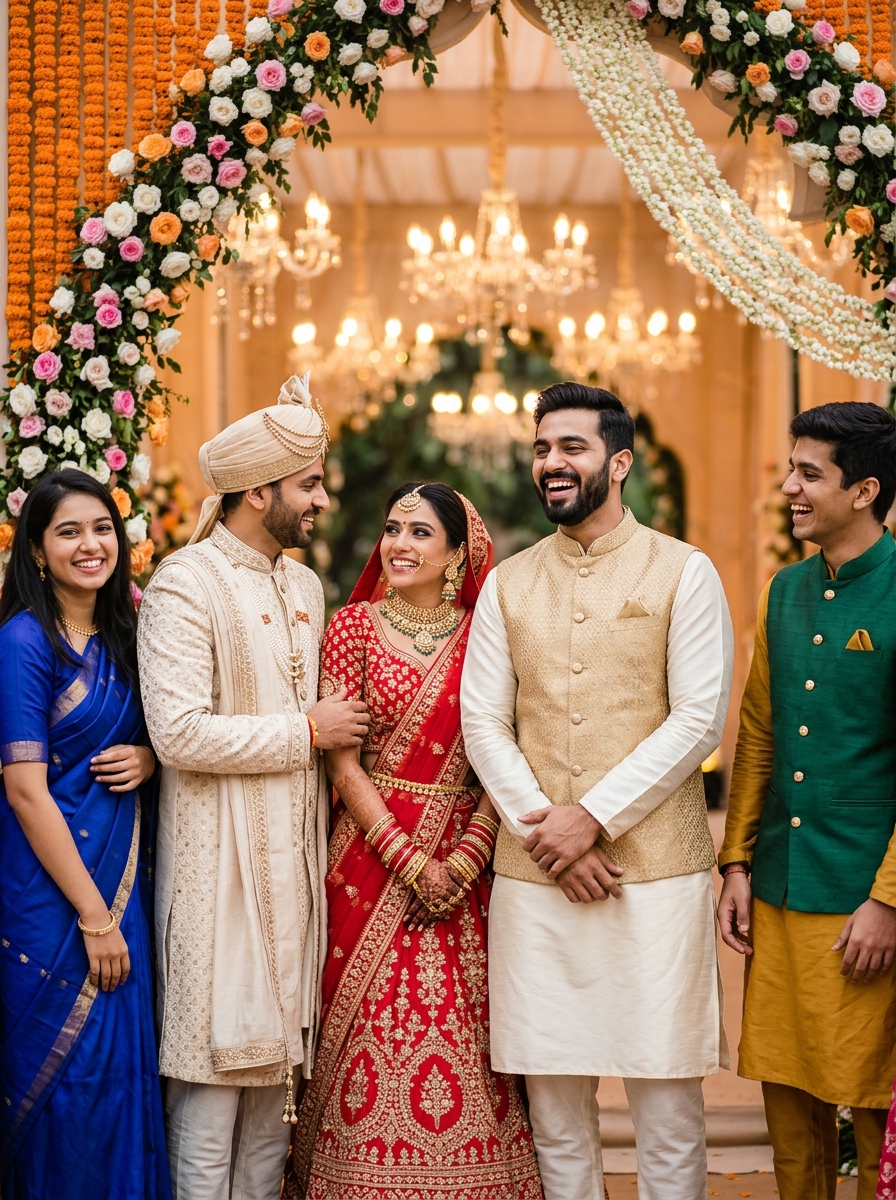
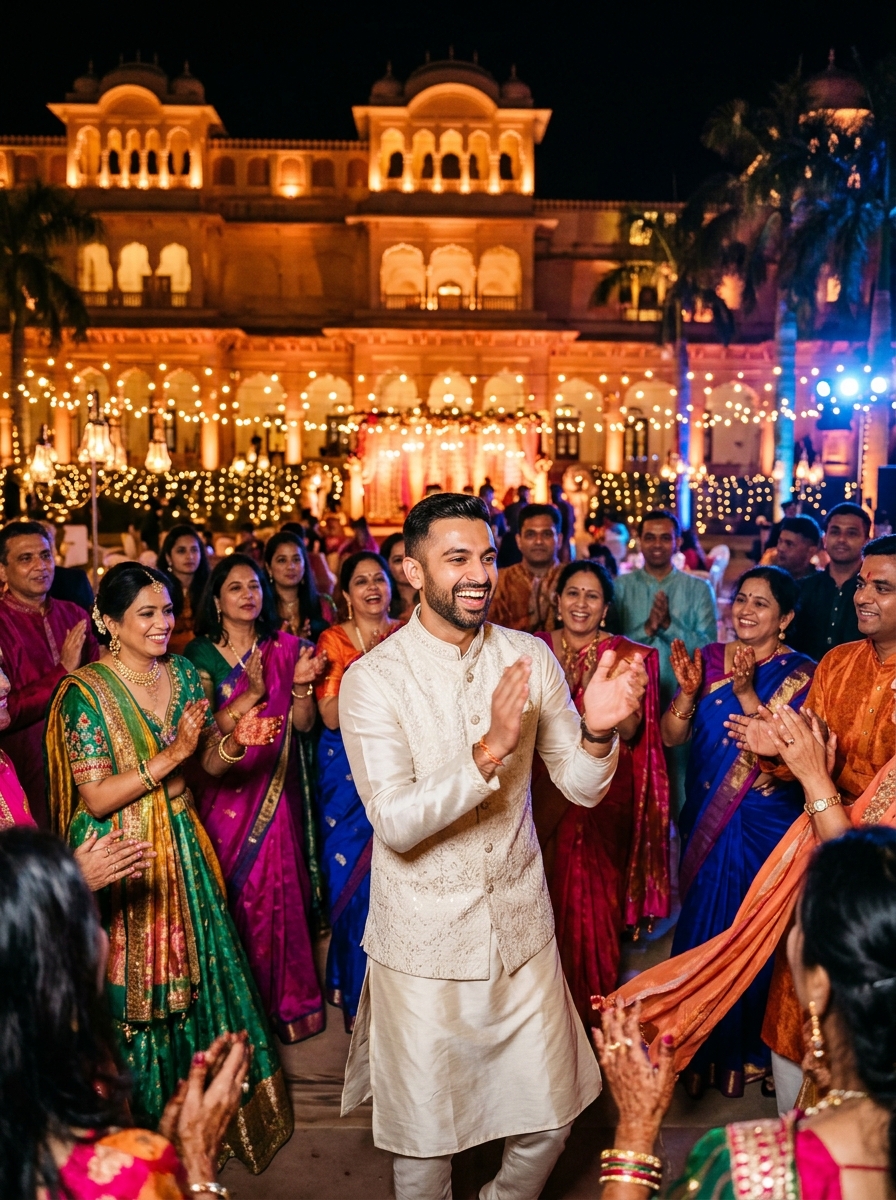
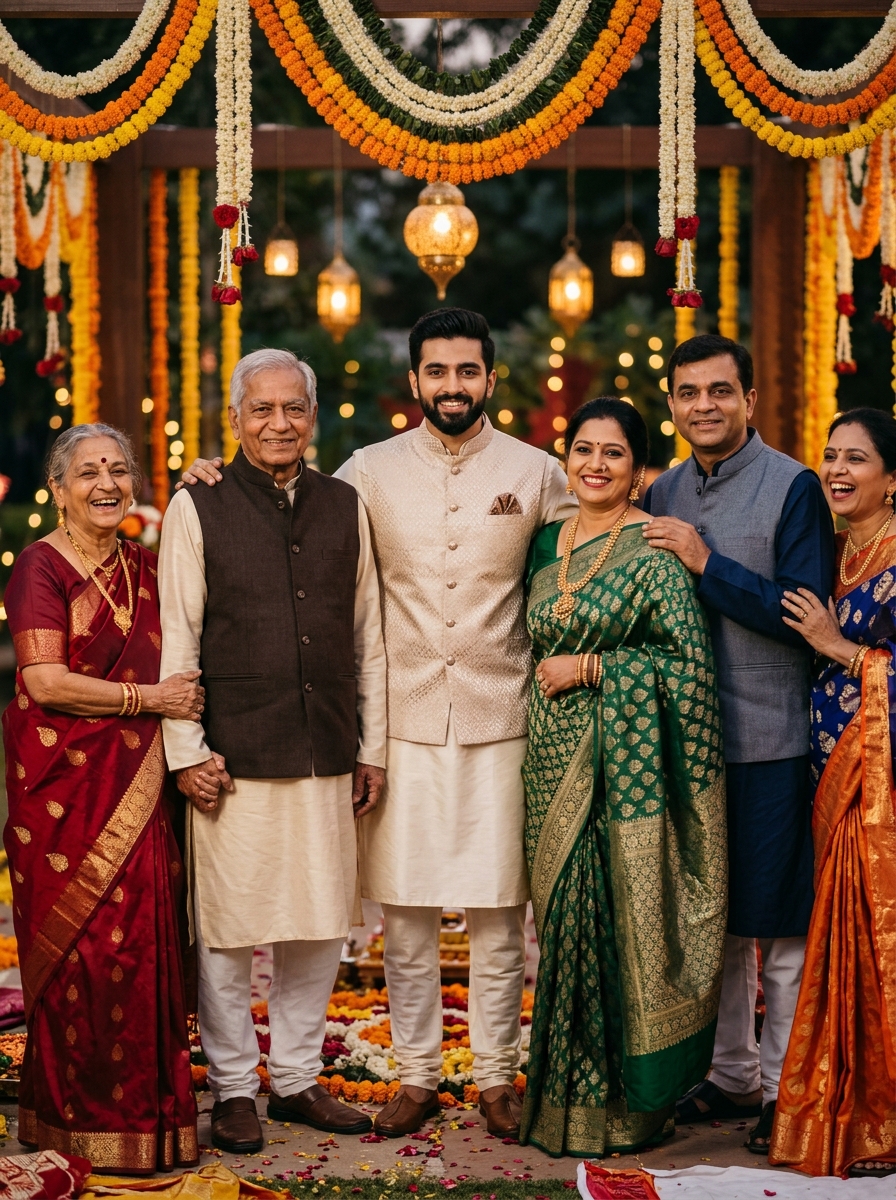
Itna asaan ki koi bhi kar le.
Step 01 · You
Bring in your photos
Connect the event's Google Drive folder with one click, or import from a folder on your studio computer. No re-uploading gigabytes.
- Originals stay in your own Google Drive
- Re-sync picks up only the photos you've added
- Duplicates are skipped automatically
Step 02 · ZoefTech Facial AI
Every face gets found
Our AI detects every face in every photo, from solo portraits to big family stage groups, and builds a private search index for that event.
- Works on crowded group and stage photos
- Each event is searched on its own, never mixed with others
- You watch progress live on your dashboard
Step 03 · You
Share the QR code
Download a print-ready QR code for table cards, the entry board, the reception screen or a digital invite.
- Set when the gallery expires
- Lock the gallery instantly if you ever need to
- Optional sign-up QR so guests get a WhatsApp alert
Step 04 · Your guests
One selfie, all their photos
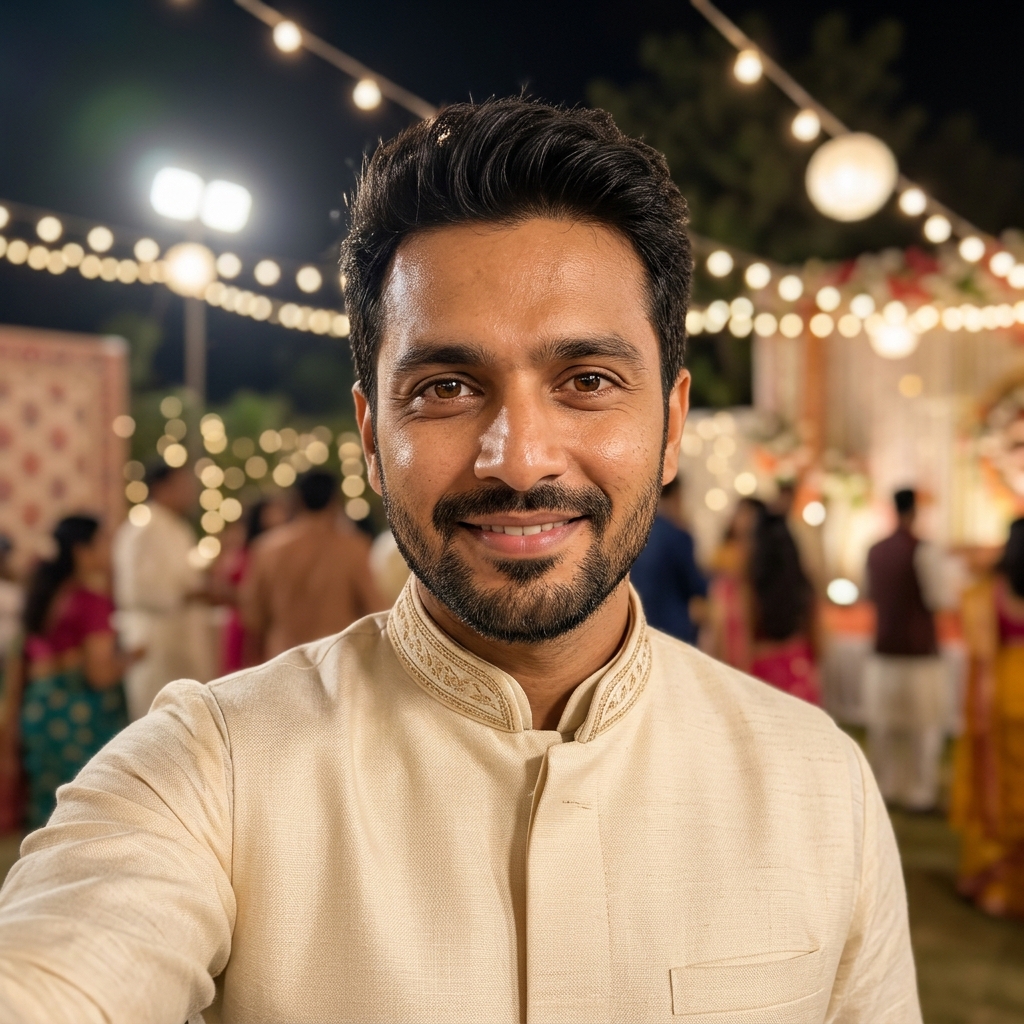
Guests scan with their phone camera, agree to the privacy notice, take one selfie and see every photo they're in within seconds.
- No app: opens in Chrome or Safari
- Selfie is processed in memory and never stored
- Full-resolution downloads to their phone
Bonus: guests who sign up with the registration QR get a WhatsApp message the moment you publish their photos, so even people who left early come back to your gallery.
Drive link vs. Apni Photo.
Ready for your next event?
Create an event, connect Drive and print the QR code. Setup takes minutes.